The “best graphics settings for smooth gameplay” depend on your PC/phone specs and the game, but the goal is always the same: stable FPS + low stutter + clear visibility. Here are solid universal settings that work for most games.
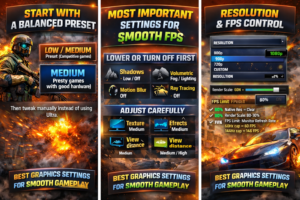
1. Start with a Balanced Preset
In most games, choose:
- Low / Medium preset (competitive games)
- Medium preset (story games with good hardware)
Then tweak manually instead of using Ultra.
⚡ 2. Most Important Settings for Smooth FPS
🔻 Lower or Turn Off First
These give the biggest FPS boost:
- Shadows → Low / Off
- Volumetric Fog / Lighting → Low
- Motion Blur → Off
- Depth of Field → Off
- Ambient Occlusion → Low
- Ray Tracing → Off (very heavy)
🟡 Adjust Carefully
- Texture Quality → Medium/High (depends on VRAM)
- Effects Quality → Medium
- View Distance → Medium (high if CPU is strong)
🟢 Keep High (if possible)
These usually don’t hurt FPS much:
- Anisotropic Filtering → 8x or 16x
- UI Quality → High
- Texture filtering → High
🖥️ 3. Resolution & FPS Control
- Use native resolution for clarity
- If FPS is low:
- Lower to 900p / 1080p → 720p
- Or use Render Scale: 80%–90%
- Turn on:
- FPS Limit = monitor refresh rate (or slightly lower)
- Example: 60Hz → cap at 60 FPS
🚀 4. Smooth Gameplay Boost Settings
- V-Sync → Off (unless screen tearing is bad)
- G-Sync / FreeSync → On (if supported)
- Fullscreen Mode → Exclusive Fullscreen
- Close background apps (Chrome, Discord overlays, etc.)
🎯 5. Competitive (Best FPS Setup)
For games like FPS shooters:
- Everything Low/Off except:
- Texture = Medium
- View Distance = Medium/High
- Resolution Scale = 100% or slightly lower
- FPS cap = highest stable FPS (120/144/240)
💡 Quick Rule of Thumb
If your game is lagging:
- Turn down shadows first
- Then effects + post-processing
- Then reduce resolution scale
- Only last: reduce textures
- refresh naw